




May 25 2026
How to Transfer Voice Recordings from iPhone?
Whether you're recording lectures, interviews, meetings, or voice notes, knowing how to transfer voice recordings from iPhone is essential for backup, editing, and sharing.
Apple's Voice Memos app makes recording easy, but moving files between devices isn't always as convenient—especially if you manage dozens of recordings every week.
This guide covers six practical ways to transfer your recordings and explains how AI-powered voice recorders like Anypin Note Pod P1 can streamline your recording workflow from the very beginning.
Method 1. Transfer Voice Recordings with AirDrop
If you own both an iPhone and a Mac, AirDrop is the fastest option.
- Open Voice Memos.
- Select your recording.
- Tap Share.
- Choose AirDrop.
- Select your Mac.
Method 2. Transfer via iCloud Drive
If iCloud sync is enabled, Voice Memos can automatically appear across your Apple devices.
Simply enable:
Settings → Apple ID → iCloud → Voice Memos
This method is ideal if you regularly switch between iPhone, iPad, and Mac.
Method 3. Transfer to Windows Using USB
Windows users can manually copy recordings.
- Connect iPhone via USB
- Open iTunes (or Apple Devices)
- Export recordings
- Save to your PC
Method 4. Share via Email or Messaging Apps
For a few recordings, simply tap Share and send the file through:
- Slack
- Microsoft Teams
- Google Drive
- Dropbox
This method works well for quick collaboration.
Method 5. Upload to Cloud Storage
Cloud services provide easy access across devices. Popular choices include:
- Google Drive
- Dropbox
- OneDrive
- iCloud Drive
Uploading recordings also creates a backup in case your phone is lost or replaced.
Method 6. Start with an AI Voice Recorder Instead
If you frequently record meetings, interviews, or lectures, manually transferring files after every session quickly becomes time-consuming.
Rather than recording in Voice Memos and then exporting files, many professionals now use an AI voice recorder that automatically syncs recordings, generates transcripts, and organizes notes in one place.
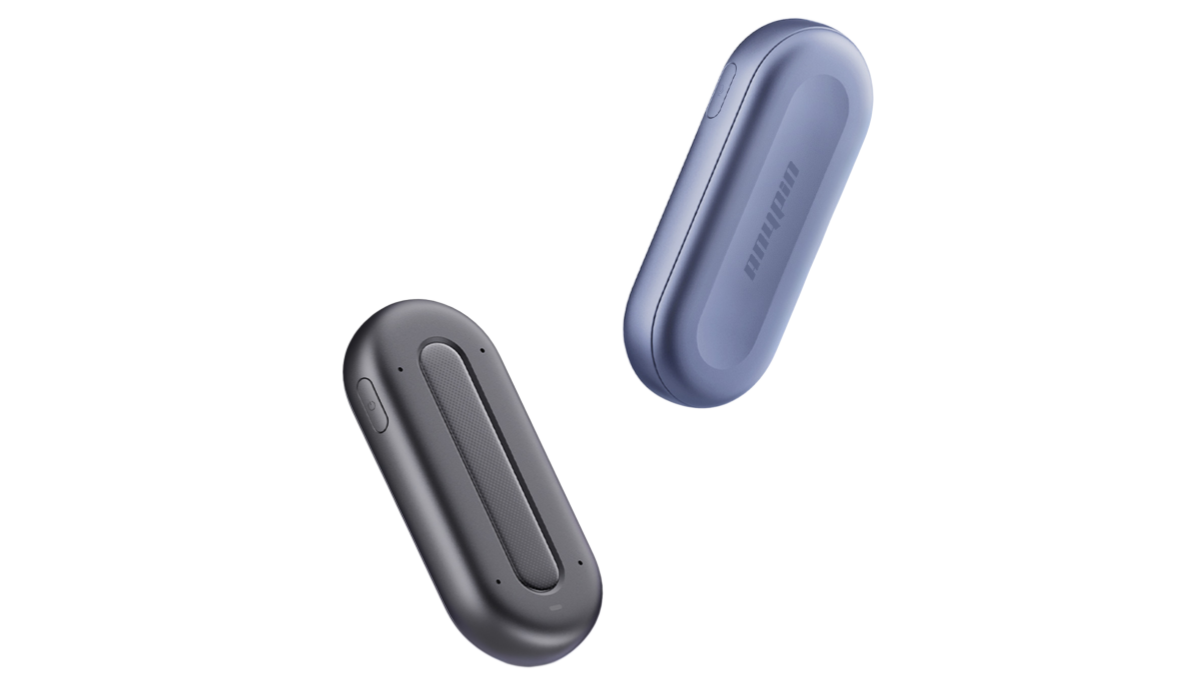
The Anypin Note Pod P1 is designed for this workflow. Instead of focusing on file transfers, it simplifies the entire recording process:
- AI transcription in over 120 languages
- Automatic Wi-Fi upload to the Anypin app
- AI-generated summaries and key points
- Cross-device access to recordings and transcripts
- Searchable meeting notes
- Enterprise-grade privacy and data security
Note: The Anypin Note Pod P1 is not designed to import recordings from Apple's Voice Memos. Instead, it creates a more efficient workflow by recording directly on the device and automatically syncing recordings and AI-generated notes to your account.
Conclusions
However, if your daily workflow involves recording conversations, meetings, or lectures, an AI note taker like Anypin Note Pod P1 can eliminate much of the manual work. With automatic syncing, AI transcription, intelligent summaries, and searchable notes, it helps you focus on conversations instead of file management.
FAQ
How do I transfer voice recordings from iPhone to my computer?
You can use AirDrop (Mac), USB (Windows), iCloud Drive, or cloud storage services like Google Drive and Dropbox.
Can I transfer Voice Memos without iTunes?
Yes. AirDrop, iCloud, email, and cloud storage services allow you to transfer recordings without using iTunes.
What's the easiest way to share Voice Memos?
Tap Share in the Voice Memos app and choose AirDrop, email, or your preferred cloud storage service.
Does Anypin Note Pod P1 transfer recordings from iPhone?
No. The Anypin Note Pod P1 does not import recordings from Apple's Voice Memos. Instead, it records audio independently and automatically uploads recordings, transcripts, and AI summaries to your Anypin account via Wi-Fi.
Is an AI voice recorder better than Voice Memos?
If you only need basic recordings, Voice Memos is sufficient. AI voice recorders for meetings, interviews, lectures, and multilingual conversations, an AI voice recorder provides transcription, summaries, searchable notes, and cloud synchronization, making it a more efficient productivity tool.



